


Skip to Content
Northwoods
Main Content

Hiker Looking Out Over Mountains

16 Minute Read | June 1, 2026

GA4 Setup Tips

The (non-) Definitive Guide

Updated: June 1, 2026 & May 20, 2022 
Originally Published: Oct. 21, 2020

Google Analytics 4 (GA4) has been the only version of Google Analytics available since July 2023, when Universal Analytics (UA) was officially sunset. It has matured significantly since its early days, and it's now a robust, full-featured analytics platform – though it still rewards those who take the time to configure it properly. Updates and improvements continue to occur on a regular basis. It's still an incredibly fun time to be working with GA. 

GA4 is easy to set up and offers great insights even with a plain-vanilla installation. However, as with any tool, you should take extra steps to ensure you're maximizing the GA4 setup for your website.

This guide is what I've discovered and refined over the years. I'll keep adding to this post as things change.

Index


Tip 1: Check Your Site-Search Settings

GA4 will track several user interactions by default: page views, outbound links, downloaded files, scroll depth, video plays, and site search terms. Those site-search terms are a great insight into your website visitors – they're typing, into your website's search box, exactly what they're looking for. You definitely want to capture those.

Different websites use different conventions to indicate a search term. Some use the word "query" to show that; other common examples are "s" or "keyword".

To see what your website uses, go to the search bar and type in something, then look at the URL. You’ll see something like this:
 

A view of GA4 query URLs in a browser search bar

If the word or letter your website uses to designate a search term is "q," "s," "search," "query," or "keyword," you're in luck. Those are all covered by the default GA4 setting.

If you have something different, like we do on the Northwoods website, you have to make an adjustment.  The phrase that designates a search term on our website is “Search_Keywords”.

If you don’t have one of the default search terms, let’s walk through how to make sure your search terms are being tracked.

To do these steps, you will need “Edit” rights in your GA4 account.

1. Go into the GA 4 Admin screen and click on the “Data Streams” option.
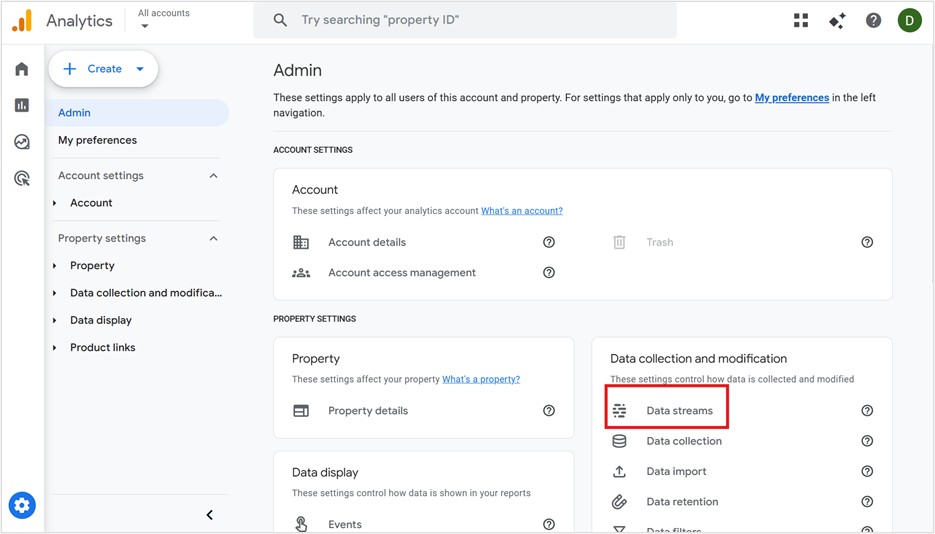
Where to access Data Streams in GA4

2. Click on the right arrow on your Web property.
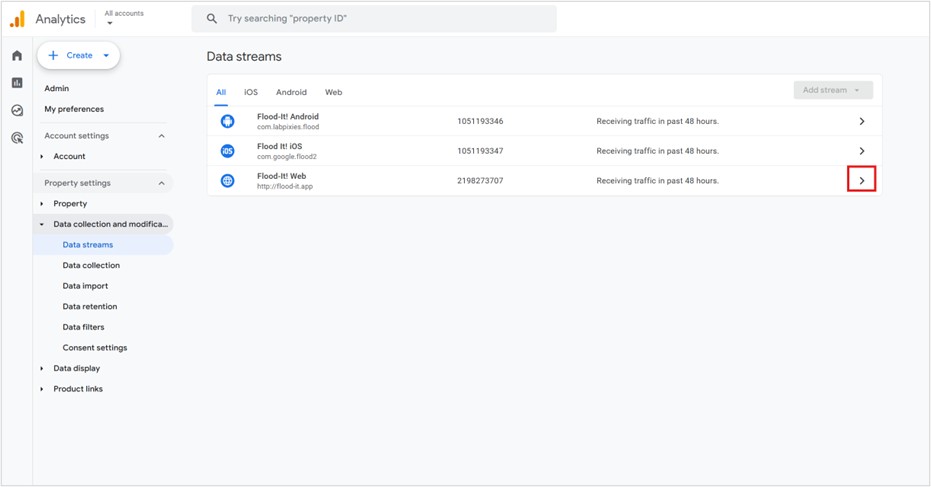
An image from the GA4 interface showing Data Streams

3. In the “Enhanced measurement” window that opens up, click on the settings gear icon then “Show advanced settings” under Site search.
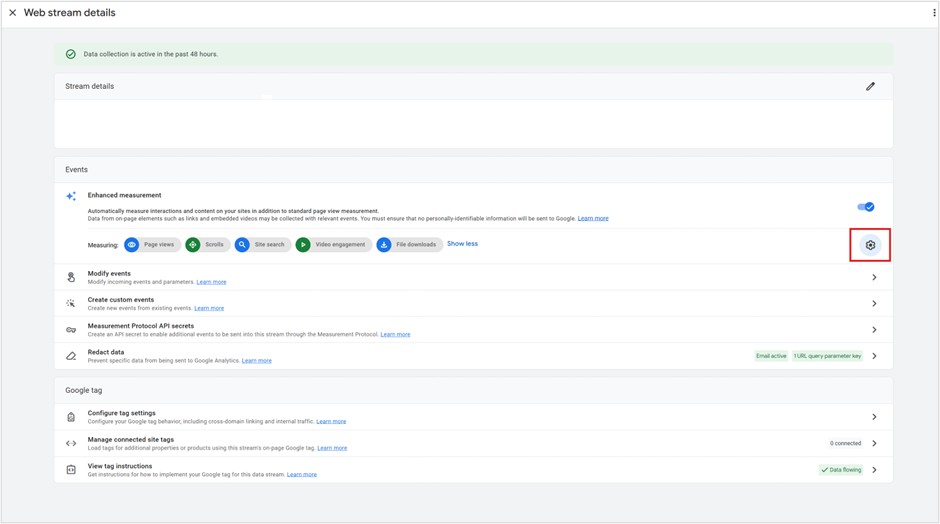
Web stream details window highlighting placement of the gear settings icon.

The Enhanced measurement window in GA4

4. You can see the default search term parameters that already exist (in box 1). In box 2, type in the term or letter that your website uses to designate a search term. In Northwoods’ case, that’s “Search_Keywords." Then “SAVE” your work.

The Enhanced measurement screen in GA4

5. That's it! From this point forward, any search terms entered onto the site by your users will be captured.

(back to index)


Tip 2: Check your "Data Retention" Settings

While you're in the GA4 Admin, go to "Data Retention" under Data collection and modification.

By default, the data retention is set to "2 months." This has been a consistent GA4 default – and it still trips people up.
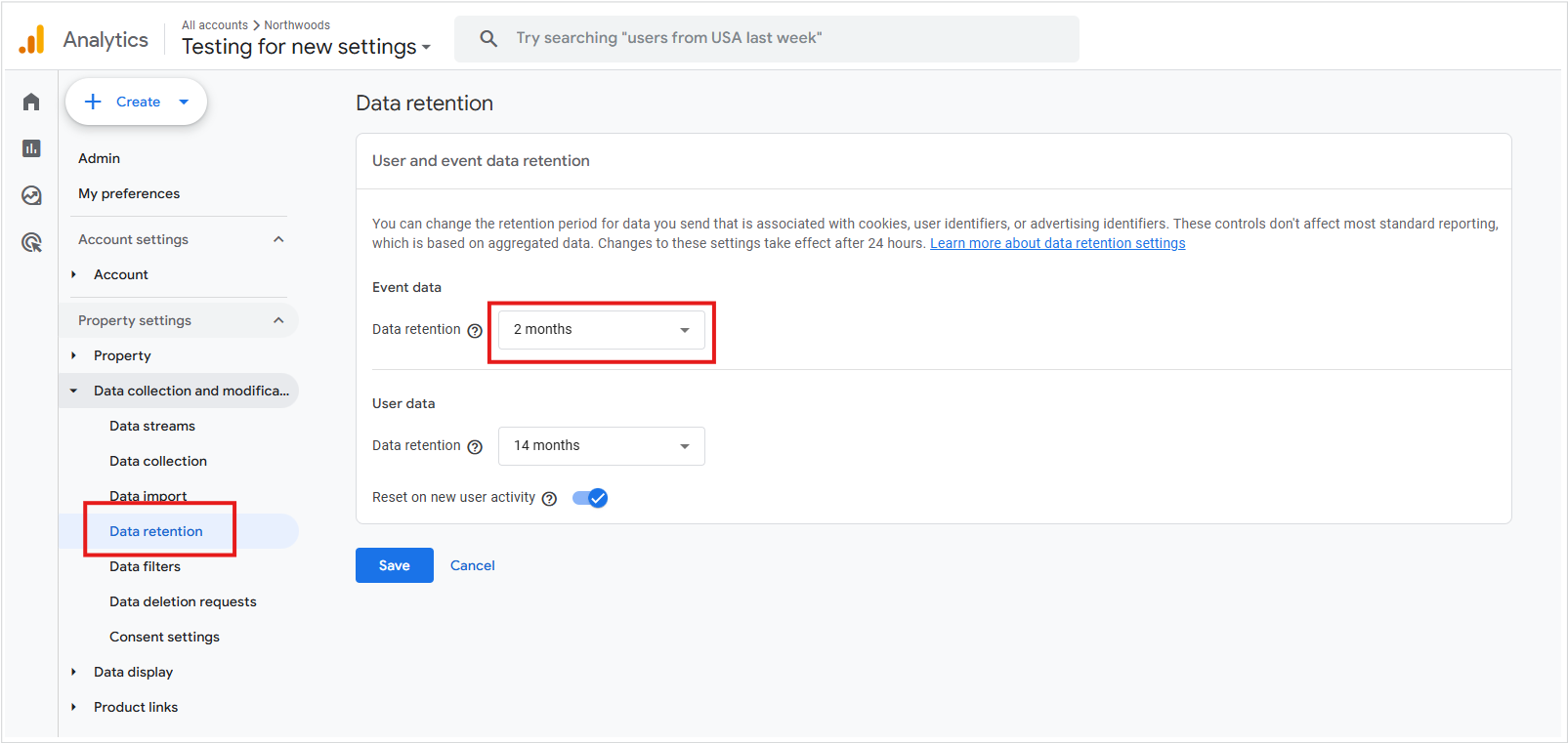
The Data Retention option in the GA4 interface

You probably want to set that to the other option, 14 months.
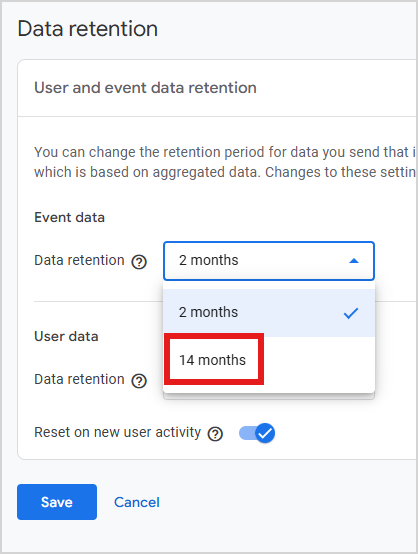
A user and event data retention screen in GA4

There's a lot of confusion about what this setting does. It has no impact on the standard aggregated reports in the UI – you'll be able to see information in those reports going back as long as you've collected data.

The setting does affect Explorations, though. If you are building your own set of reports, you won't be able to go back more than the 2 months or 14 months you specified. So it's a good idea to choose 14 months if you want any type of meaningful time-based Explorations.

Also: Note the toggle for "Reset user data on new activity." By default, that's on, which makes sense. It just means that, regardless of which limit you choose, each time a user visits your website, the clock resets to when their data will be deleted.
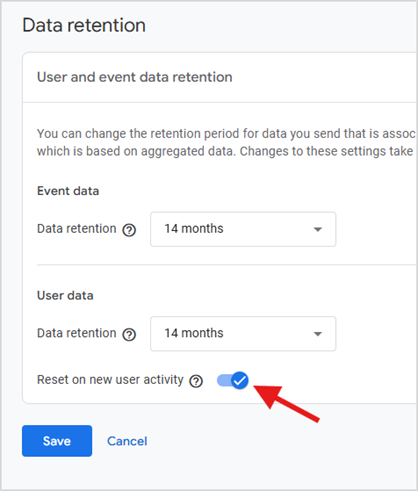
The user and event data retention screen in GA4

Make sure to "Save" your changes!

(back to index)


Tip 3: Create Custom Insights

Here’s the best tip so far – not only because some day it’ll warn you about something catastrophic happening on your website, but because it’s kind-of hidden.

GA4 relies on machine-learning (ML) insights to supplement the stripped-down UI. Got something weird happening on your site? Ideally, an insight will report on that anomaly. But there are also some custom insights you'll want to enable.

The insights are available in a couple of places, including on the home page. Go ahead and click on “View all insights”.
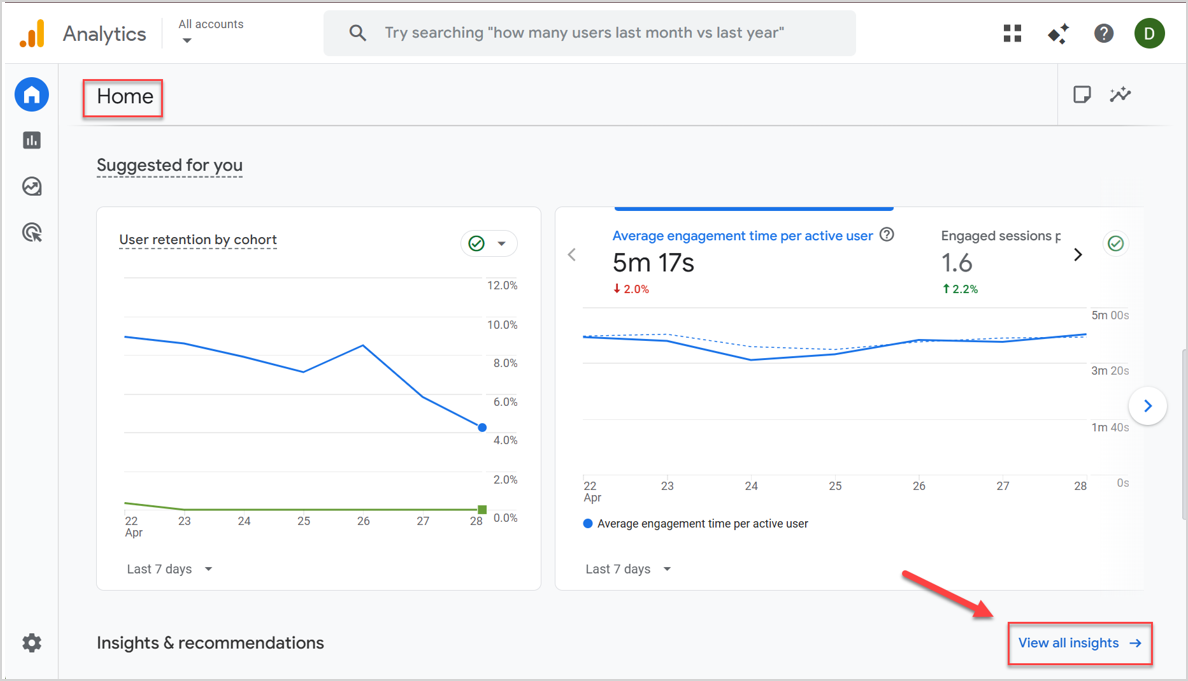
The View all insights option in GA4

In the next page (home / insights), click on "Create."
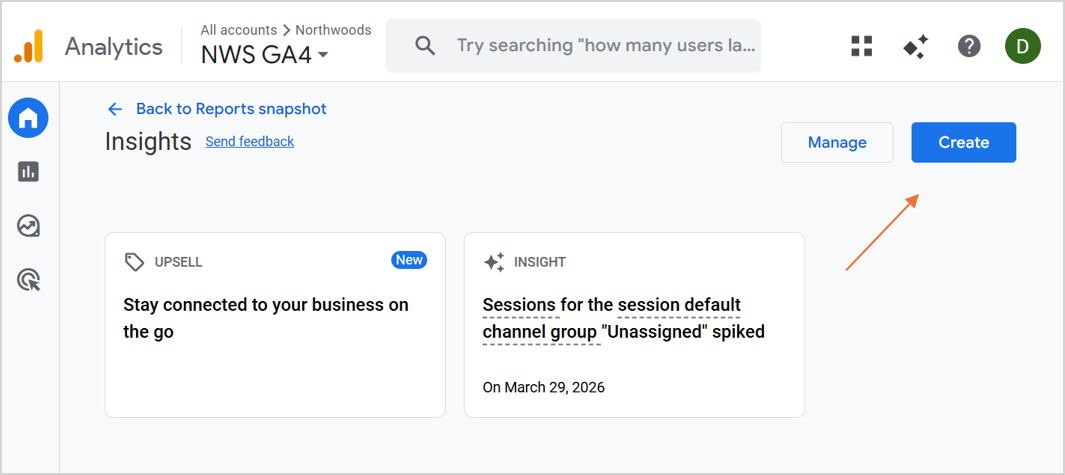
The View all insights option in GA4

You'll see a list of suggested custom insights, all of which could be important depending on your website. But one of them will be important for all websites – the "Anomaly in daily views" (1). Here's where you can set up a notification that emails you about anomalies in page views. (e.g., you had zero page views today. I bet something's broken!)

Go ahead and click on the “Review and create” link (2).

An image of the Create Custom Insight screen in GA4

Now you have a choice of specifying exactly what you want to be notified about. I can’t tell you how happy this makes me. It’s a wonderful practice to set up notifications when things are going wrong on your website. Most people don’t do this (it’s done through custom alerts in the older version of GA), but GA4 makes it very easy to set up. So easy, in fact, that I would accept the default of “Has anomaly." I think GA4’s ML will be able to figure this out just fine. I would for sure create the “daily views” custom insight; you can decide if it makes sense for your website to also enable the other custom insights.

Even better – you can create your own custom insights from scratch.

As small as these custom insights may seem, this is one of my favorite little features of GA4. I love proactively setting up alerts and it's so easy to do here. Nicely done, GA4 team!

An image of the Create Custom Insight screen in GA4

Specify the e-mails of the people you want notified:

Manage notifications screen in GA4

When you’re all done, go ahead and press the “Create” button.

When an anomaly happens, you'll get an e-mail like this one:

New Insight: Anomaly in daily users indication in GA4

At some point in the future, when that anomaly fires and you’re able to go in and resurrect your website tracking because something stupid broke – please send me an e-mail and thank me!

(back to index)


Tip 4: Create Filters for Internal Traffic (but don't make them live)

There are filters you can use for either internal traffic or dev/test environments. Let's walk through setting up an "internal traffic" filter.

Start in the admin section of GA and click on the “Data Streams”.
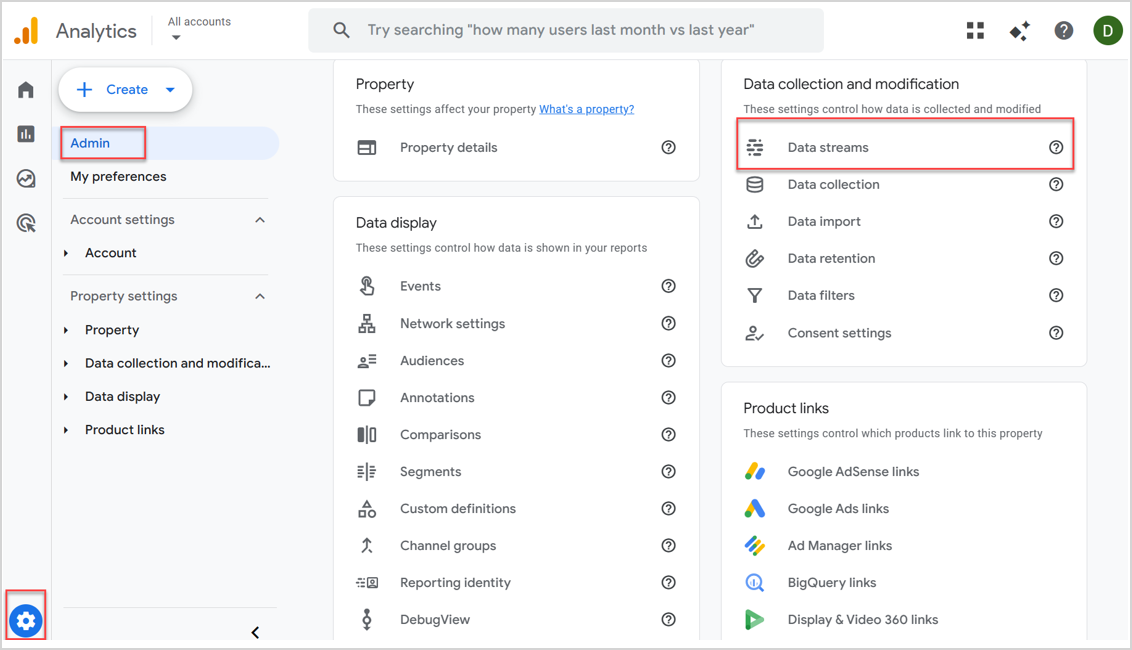
Where to click on Data Streams in the GA4 interface

Click on the web stream for which you’ll create the filters:

Adding a data stream in GA4

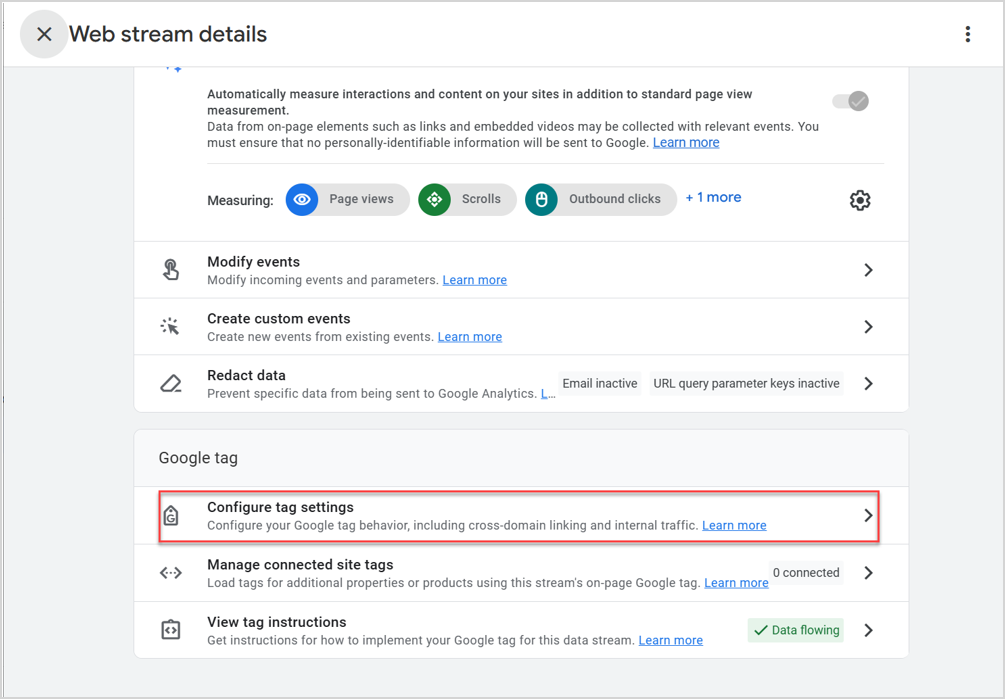
Go to "Tagging Settings":

Accessing Tagging Settings in GA4

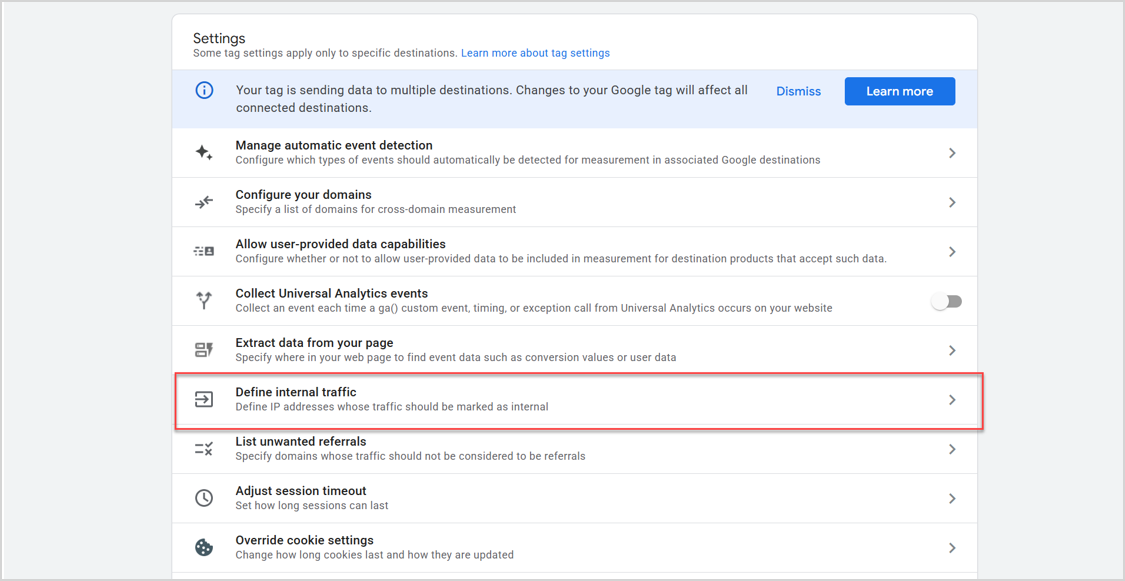
Click on "Show more", then "Define Internal Traffic":
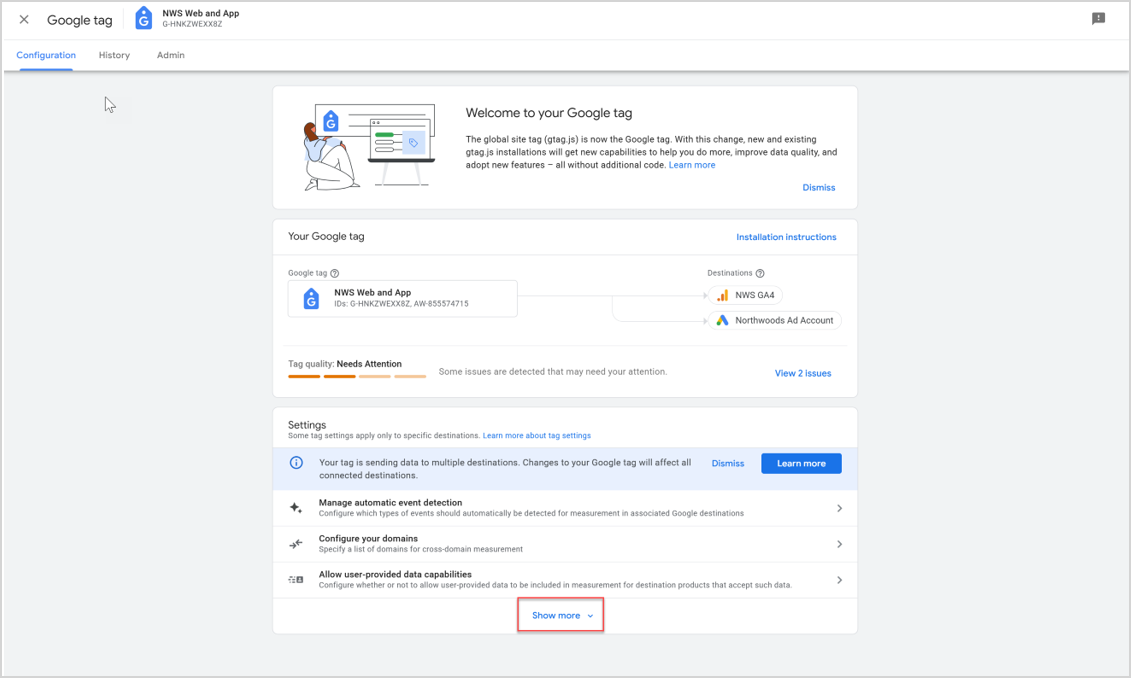
Google tag Settings page in GA4.

Define internal traffic in GA4

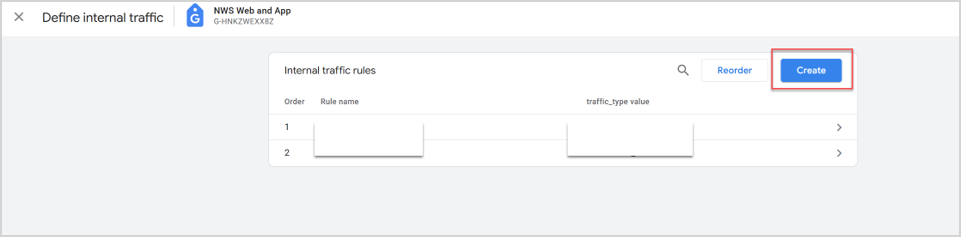
Click on "Create":

Define internal traffic in GA4

You’ll now have your first opportunity to start adding an IP address (or multiple - up to 10 rows). Put in the name of the configuration (1), the match type (2), and the IP address (3).  

Create an internal traffic rule in GA4

There are multiple match types – and, as of recent updates, RegEx is now available as one. This was a long-standing frustration that Google finally addressed.

IP addresses in GA4

Here’s a sample configuration filled out for my home IP address:

A sample internal traffic rule configuration in GA4

IMPORTANT: Even though GA4 uses “Anonymize IP” (dropping off the last octet in the IP address), for the “IP Address equals” option, you have to use the full IP address.

Save your changes. You’ll now see that configuration show up in your list of “internal traffic” rules.

Define internal traffic seciton in GA4

Next, go back to “GA Admin / Data Settings / Data Filters”.
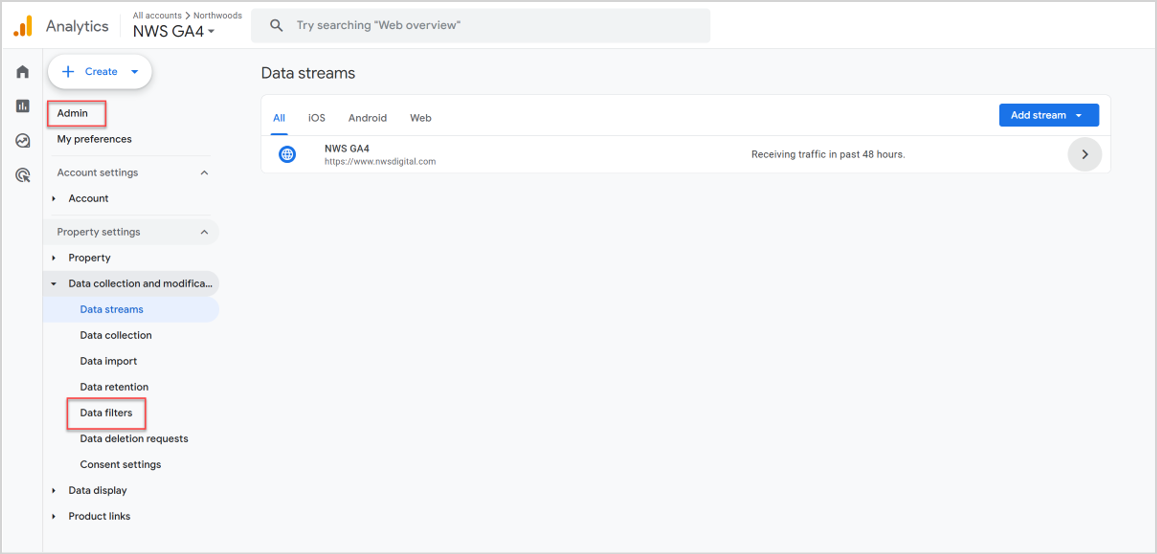
Data filters access in GA4

Make sure the Data Filter for Internal Traffic is set up. (I think this happens by default; I don’t think you have to do anything. But check to be sure.)
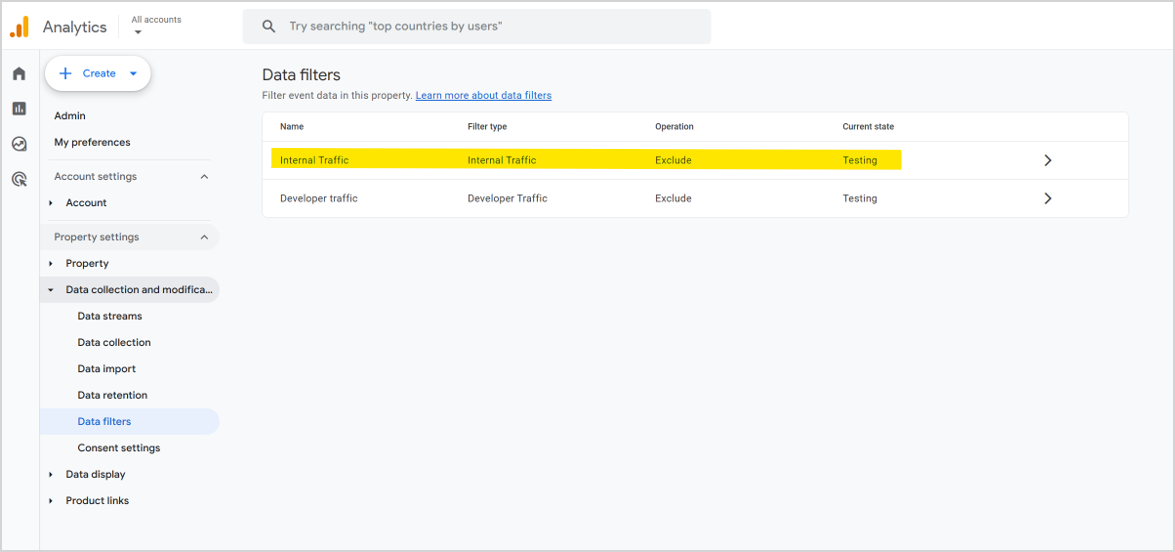
Set up of the Data Filter for Internal Traffic in GA4


Now What?

Now you wait patiently. You won’t see any results of this filter until the next day.

The next day, you can use the dimension “Test data filter name” to look for traffic that is labeled “internal” or “not set” (i.e. external). Here is an example of the filter:
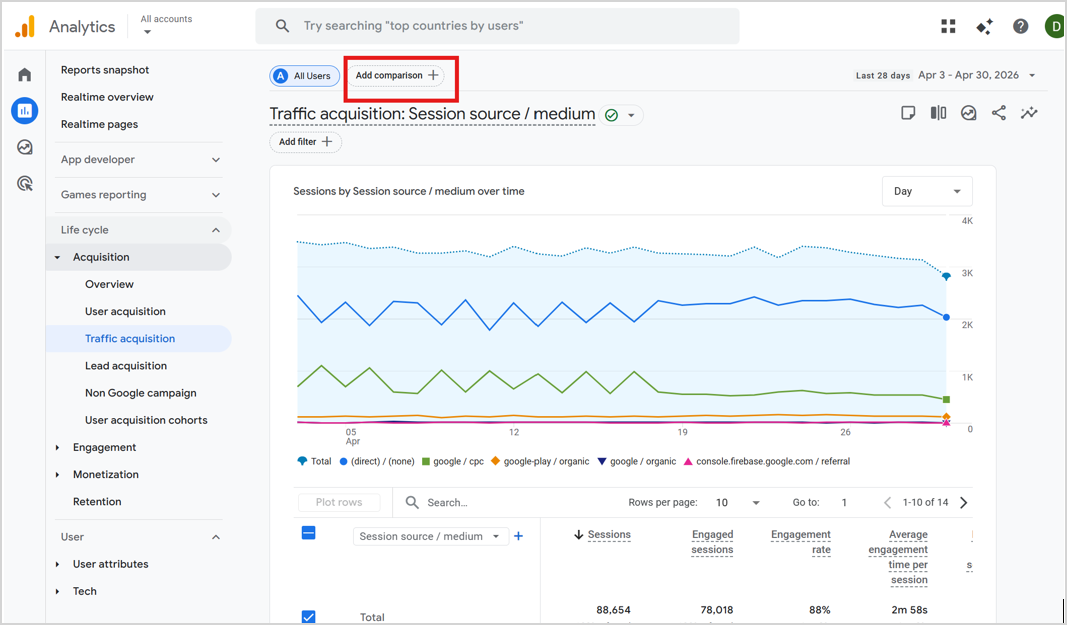
The GA4 interface

The GA4 interface

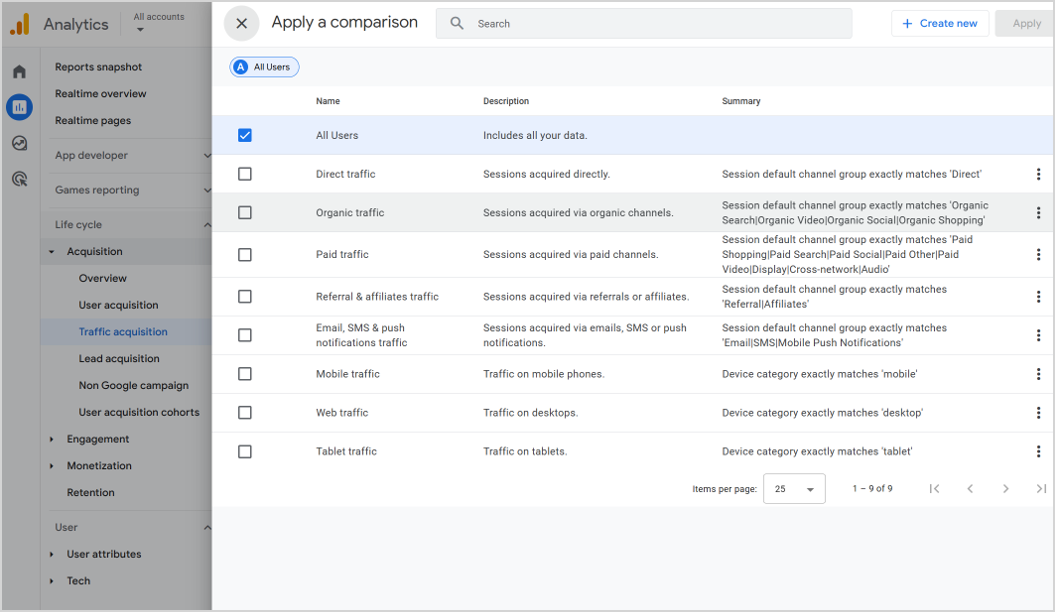
And here's where you can use it in a report in the UI:

The GA4 interface

You could also use it in Explorations, as a dimension for any of the reports you build. As a simple example:

  1. Specify a date range which includes the internal-traffic being set up.
  2. If the dimension is not there, click the + button and add the…
  3. “Test data filter name” dimension. 
  4. Choose an Exploration report.
  5. Drag or choose the “Test data filter name” to the “Rows” section.
  6. You’ll now see the internal traffic and the not-set traffic.

An image of the GA4 interface

Expect changes with the internal traffic filter

Good news on this front: the RegEx match type – long the biggest frustration with GA4’s IP filtering – is now available. That removes the main barrier for large or multi-site organizations trying to define internal traffic across a range of IP addresses. The lack of traditional views still stings for anyone who built complex UA filter setups, but BigQuery and Looker Studio have largely filled that gap for advanced use cases. The near-term changes I was hoping for did arrive – just on Google’s timeline, not mine.


Make the Internal Traffic Filter Live?

I think it’s great to set up the internal traffic filter – but leave it in test mode. You can always do your analysis and exclude that segment, either in the GA4 interface or in Big Query. But since there is only one “view” in GA 4, I’m reluctant to start excluding traffic that you’ll never get back. Mess up that IP filter and the data is gone forever – there’s no raw view on which to fall back.

But if you *really* want to make the internal-traffic filter live

Here's how. 

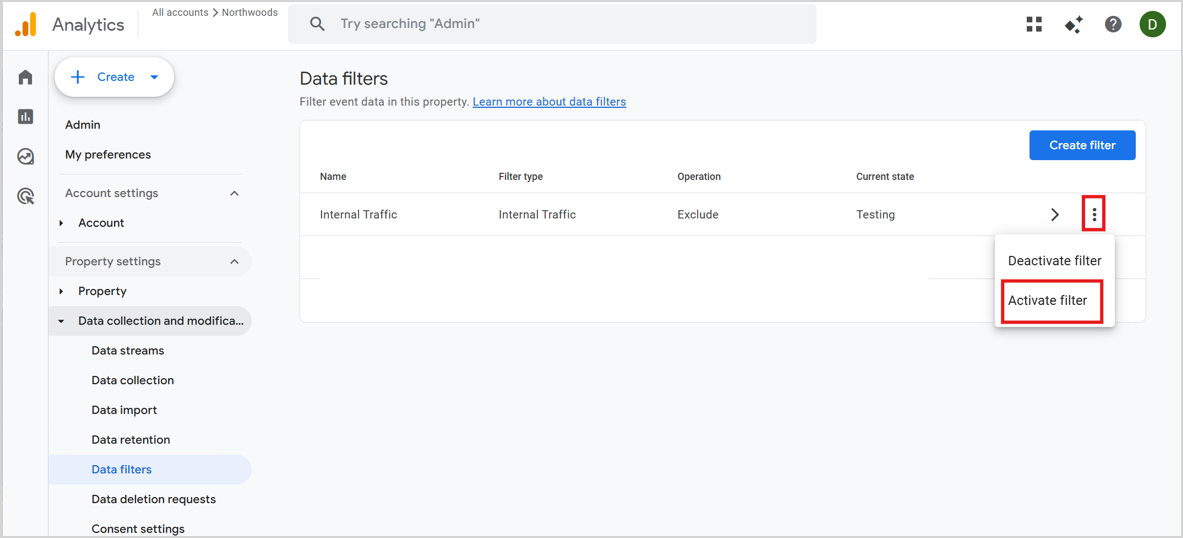
  1. In the GA4 Admin screen, choose Data Settings / Data Filters
  2. Click on the three dots on the "Internal Traffic" line.
  3. Activate the Filter

Data filters in GA4

You'll get a warning screen.  Pay attention to it.  Have you really tested the internal-traffic filter?  Are you sure?  if so, choose "Activate filter".
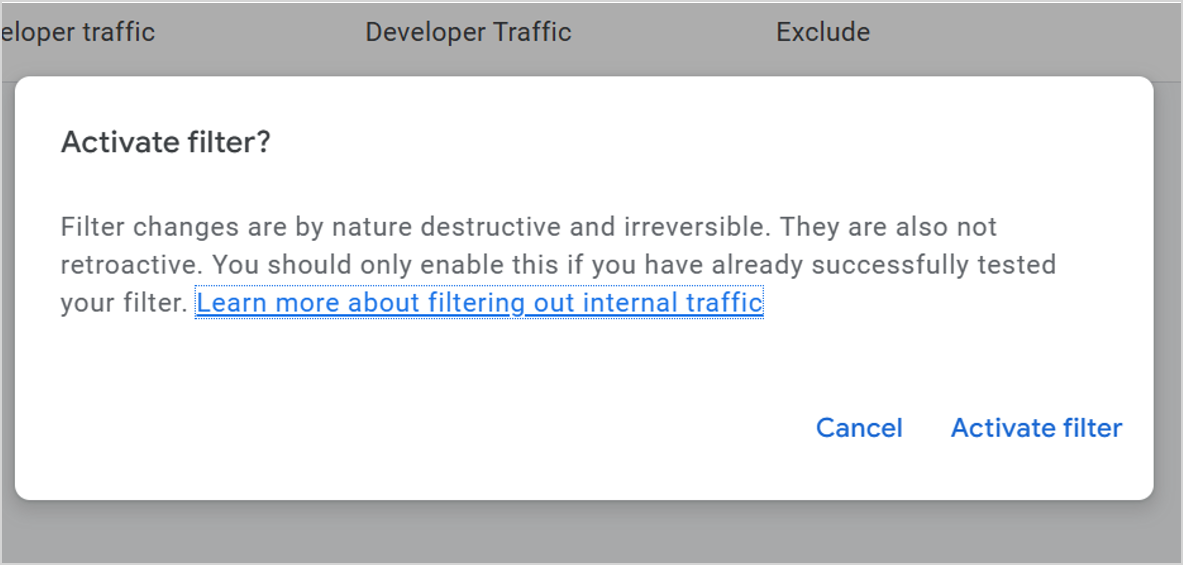
A warning screen in GA4

You'll now see that the internal-traffic filter is active.

A Data Filters screen in GA4

My strong recommendation: don't activate it. Without a raw view to fall back on, it's too risky to start excluding traffic – particularly since you can easily filter out internal traffic in the GA4 UI, in BigQuery, or in Data Studio (formerly Google Looker Studio).

(back to index)


Tip 5: Label Your Exploration Reports

Here’s a simple idea – make sure that every report you create in Explorations has a name.

The GA4 interface

Otherwise, once you start creating reports, you’ll be hard pressed to remember what’s in the myriad “Untitled exploration” reports.

An image of the GA4 interface

Bonus tip: GA4 now lets you share Explorations with other users in your property. Naming them becomes even more important when colleagues are navigating your work.

(back to index)


Tip 6: Set up BigQuery Integration

Honestly one of the most impressive features of GA4 is its built-in integration with BigQuery (part of the Google Cloud Platform).

BigQuery integration remains one of the most important features of GA4. It's no longer a novelty – for serious analytics work, it's essentially a requirement.

You can set up automatic export of GA4 data directly into BigQuery and specify whether it runs once per day or virtually instantaneously. The "once per day" option will essentially be free (depending on how much data you have). For the "instantaneous" exports, you'll have to set up a billing account.

BigQuery is where the real GA4 analysis happens for most organizations doing anything beyond basic reporting. Once the data is in BigQuery, you have access to a whole new world of processing and analysis – and it integrates seamlessly with Data Studio, dbt, and other modern data tools.

(back to index)


Tip 7: Expand the Automatic Scroll Tracking

One of the enhanced measurements set up by default in GA4 is scroll tracking. It's loaded on every page and fires when the visitor gets 90% of the way down the page.

This approach is smart. It’s a nice attempt to capture meaningful data without being inundated with noise.

Sometimes, though, you'll want to track scroll depth at more than just the 90% mark – e.g., for blogs or other long-form content. Personally, I like to track those at the 25, 50, and 75% marks.

Steps to add more Scroll Tracking in GA4, Using GTM

1. In GTM, enable the "Scroll Depth Threshold" and "Scroll Depth Units" in the built-in variables section.

How to set up scroll depth thresholds and units in Google Tag Manager

2. You’ll need a scroll-depth trigger. Two important notes:

  • You can set the percentages to whatever you want.  In this case, the percentages of 25, 50, 75, and 100% ill end up getting added to the 90% built-in GA4 scroll tracking.
  • I recommend only firing the trigger on certain sections of your site (the “/blog” pages in this example).

An image of the Scroll Depth screen in GTM

3. Create a new tag of type “GA4 Event”.

A Choose tag type screen in GTM

4. With this new tag (see screenshot for steps):

  1. Name it however you’d like.
  2. Use the name of the GA4 configuration tag you’ve previously set up in GTM.
  3. Make sure to use “scroll” as the event name.  “scroll” is the GA4-recognized event name for the scroll-depth tracking; if you use any other name, set up is going to be harder.
  4. Add event parameter and use “percent_scrolled” for the Parameter Name.  Again, you want to be consistent with what GA4 uses for scroll events.
  5. Use one of the variables you configured in step 1, above - “{{Scroll Depth Threshold}}”.
  6. Finally, use the trigger you set up in step 2, above.

A GA4 event - Full Scroll screen in GTM

5. Save the tag and then go into GTM Preview mode.

6. You can either look at the events in GTM’s Preview tab, or in GA4’s Debug View. I’ll show the latter.

7. Go to the DebugView in GA4 (“A” in screenshot below).  On your website, go to one of the pages where you set up the extra scroll tracking (e.g. the /blog pages, in my example.)  Scroll down the page.  You’ll see the scroll events show up in the DebugView (“B” in screenshot).

Debug View in GA4

8. Click on one of the “scroll” events so you can see the parameters.  You should see “percent_scrolled”, if you set it up correctly in your GTM tag, along with the value (75% in the screenshot below).

A image of a view in GA4

9. That’s it!  You’ve now added supplementary scroll tracking in GA4 to a specific set of your pages. Nice job!

10. Assuming it’s all working right, go ahead and publish your GTM container. 

If you already had scroll-depth-tracking set up in GTM for your UA implementation, it's easy to adjust to GA4. If you're setting up scroll tracking from scratch, check out Julius Fedorovicius's resources at analyticsmania.com – he's one of the best GTM/GA4 educators out there.

(back to index)


Bonus Tip: Review Your Data Stream Settings

This tip didn't exist in the original guide because the GA4 Admin interface has evolved significantly. Take a few minutes to review your Data Stream's Enhanced Measurement settings – especially if your GA4 property has been running since the early days.

Key things to check:

  • Page views: Should be on. But verify it's not double-firing if you've also implemented pageview tracking manually via GTM.
  • Scrolls: On by default (90% threshold). Pair with Tip 10 for expanded tracking.
  • Outbound clicks: On by default. Check that the definition of 'outbound' matches your expectations – cross-domain traffic can behave unexpectedly.
  • Site search: See Tip 3.
  • Video engagement: Tracks YouTube embeds automatically. If you have non-YouTube videos, you'll need custom GTM tags.
  • File downloads: On by default. Review what file types are being tracked and adjust if needed.

A clean data stream configuration is foundational. It's worth a periodic audit – not just at setup time.

(back to index)


Want a GA4 setup you can trust? Getting GA4 configured correctly takes more than ticking a few boxes. And bad data leads to bad decisions. If you'd rather spend your time acting on insights than troubleshooting tracking issues, Northwoods can help.  Let's talk about your analytics →

Authored By

Fred Pike

Fred Pike

Managing Director & GA/GTM Practice Lead

Share on Social Media

hand-drawn owl

Get Expert Tips

36553240/Blog/GA4-Setup-tipsThe (non-) Definitive Guide16
<p><strong>Updated: June 1, 2026 &amp; May 20, 2022&nbsp;<br /> Originally Published: Oct. 21, 2020</strong></p> <p>Google Analytics 4 (GA4) has been the only version of Google Analytics available since July 2023, when Universal Analytics (UA) was officially sunset. It has matured significantly since its early days, and it&#39;s now a robust, full-featured analytics platform &ndash; though it still rewards those who take the time to configure it properly. Updates and improvements continue to occur on a regular basis. It&#39;s still an incredibly fun time to be working with GA.&nbsp;</p> <p>GA4 is easy to set up and offers great insights even with a plain-vanilla installation. However, as with any tool, you should take extra steps to ensure you&#39;re maximizing the GA4 setup for your website.</p> <p>This guide is what I&#39;ve discovered and refined over the years. I&#39;ll keep adding to this post as things change.</p> <p><a name="content_index">Index </a></p> <ul> <li><a href="#site_search_settings">Site Search Settings</a></li> <li><a href="#data_retention_settings">Data Retention</a></li> <li><a href="#create_custom_insights">Custom Insights</a></li> <li><a href="#internal_traffic_filters">Internal Traffic Filters (for IP Addresses)</a></li> <li><a href="#label_exploration_reports">Label Your Exploration Reports</a></li> <li><a href="#setup_biqquery_integration">BigQuery Integration</a></li> <li><a href="#expand_scroll_tracking">Expand the Automatic Scroll Tracking</a></li> </ul> <p>&nbsp;</p> <h2>&nbsp;</h2> <h2><a name="site_search_settings">Tip 1: Check Your Site-Search Settings</a></h2> <p>GA4 will track several user interactions by default: page views, outbound links, downloaded files, scroll depth, video plays, and site search terms. Those site-search terms are a great insight into your website visitors &ndash; they&#39;re typing, into your website&#39;s search box, exactly what they&#39;re looking for. You definitely want to capture those.</p> <p>Different websites use different conventions to indicate a search term. Some use the word &quot;query&quot; to show that; other common examples are &quot;s&quot; or &quot;keyword&quot;.</p> <p>To see what <em>your</em> website uses, go to the search bar and type in something, then look at the URL. You&rsquo;ll see something like this:<br /> &nbsp;</p> <p><img alt="A view of GA4 query URLs in a browser search bar" class="animate-in lazy" data-alt="Example of three common query parameters used to name a search string: query, keyword, and s." data-src="/Northwoods-2020/Blogs/GA-4-Set-Up-Tips-1.jpg" loading="lazy" src="/Northwoods-2020/Blogs/GA-4-Set-Up-Tips-1.jpg?Thumbnail" /></p> <p>If the word or letter your website uses to designate a search term is &quot;q,&quot; &quot;s,&quot; &quot;search,&quot; &quot;query,&quot; or &quot;keyword,&quot; you&#39;re in luck. Those are all covered by the default GA4 setting.</p> <p>If you have something different, like we do on the Northwoods website, you have to make an adjustment. &nbsp;The phrase that designates a search term on our website is &ldquo;Search_Keywords&rdquo;.</p> <p><img alt="" class="animate-in lazy" data-alt="Query parameter for search that is not a GA4 standard: Search_Keywords" data-src="/Northwoods-2020/Blogs/GA-4-Set-Up-Tips-2.jpg" loading="lazy" src="/Northwoods-2020/Blogs/GA-4-Set-Up-Tips-2.jpg?Thumbnail" /></p> <p>If you don&rsquo;t have one of the default search terms, let&rsquo;s walk through how to make sure your search terms are being tracked.</p> <p>To do these steps, you will need &ldquo;Edit&rdquo; rights in your GA4 account.</p> <p>1. Go into the GA 4 Admin screen and click on the &ldquo;Data Streams&rdquo; option.</p> <p><img alt="Where to access Data Streams in GA4" class="animate-in lazy" data-alt="GA4 Admin screen, with arrow pointing to Data Streams option" data-src="/Northwoods-2020/Blogs/GA-4-Set-Up-Tips-3-2026.jpg?Large" loading="lazy" src="/Northwoods-2020/Blogs/GA-4-Set-Up-Tips-3.jpg?Thumbnail" /></p> <p>2. Click on the right arrow on your Web property.</p> <p><img alt="An image from the GA4 interface showing Data Streams" class="animate-in lazy" data-alt="Choose the web property Data Stream in the GA4 Admin screen" data-src="/Northwoods-2020/Blogs/GA-4-Set-Up-Tips-4-2026.jpg?Large" loading="lazy" src="/Northwoods-2020/Blogs/GA-4-Set-Up-Tips-4.jpg?Thumbnail" /></p> <p>3.&nbsp;In the &ldquo;Enhanced measurement&rdquo; window that opens up, click on the settings gear icon then &ldquo;Show advanced settings&rdquo; under Site search.</p> <p><img alt="Web stream details window highlighting placement of the gear settings icon." height="356" loading="lazy" src="/Northwoods-2020/Blogs/GA4-Set-Up-Tips-5a.jpg?Large" width="640" /></p> <p><img alt="The Enhanced measurement window in GA4" class="animate-in lazy" data-alt="Show Advanced Settings for Site search, in GA4 Admin" data-src="/Northwoods-2020/Blogs/GA-4-Set-Up-Tips-5.jpg?Large" loading="lazy" src="/Northwoods-2020/Blogs/GA-4-Set-Up-Tips-5.jpg?Thumbnail" /></p> <p>4.&nbsp;You can see the default search term parameters that already exist (in box 1). In box 2, type in the term or letter that your website uses to designate a search term. In Northwoods&rsquo; case, that&rsquo;s &ldquo;Search_Keywords.&quot;&nbsp;Then &ldquo;SAVE&rdquo; your work.</p> <p><img alt="The Enhanced measurement screen in GA4" class="animate-in lazy" data-alt="Adding a new search query parameter to Site search, in the Admin Enhanced Measurement screen" data-src="/Northwoods-2020/Blogs/GA-4-Set-Up-Tips-6.jpg?Large" loading="lazy" src="/Northwoods-2020/Blogs/GA-4-Set-Up-Tips-6.jpg?Thumbnail" /></p> <p>5. That&#39;s it! From this point forward, any search terms entered onto the site by your users will be captured.</p> <p><a href="#content_index">(back to index)</a></p> <p>&nbsp;</p> <h2><a name="data_retention_settings">Tip 2: Check your &quot;Data Retention&quot; Settings</a></h2> <p>While you&#39;re in the GA4 Admin, go to &quot;Data Retention&quot; under Data collection and modification.</p> <p>By default, the data retention is set to &quot;2 months.&quot; This has been a consistent GA4 default &ndash; and it still trips people up.</p> <p><img alt="The Data Retention option in the GA4 interface" height="303" loading="lazy" src="/Northwoods-2020/Blogs/GA4-Set-Up-Tips-7-2026.jpg?Large" width="640" /></p> <p>You<em> probably</em> want to set that to the other option, 14 months.</p> <p><img alt="A user and event data retention screen in GA4" height="554" loading="lazy" src="/Northwoods-2019/Blog/GA-Tips/GA4-Setup-Tips-8---2026.png" width="418" /></p> <p>There&#39;s a lot of confusion about what this setting does. It has no impact on the standard aggregated reports in the UI &ndash; you&#39;ll be able to see information in those reports going back as long as you&#39;ve collected data.</p> <p>The setting does affect Explorations, though. If you are building your own set of reports, you won&#39;t be able to go back more than the 2 months or 14 months you specified. So it&#39;s a good idea to choose 14 months if you want any type of meaningful time-based Explorations.</p> <p>Also: Note the toggle for &quot;Reset user data on new activity.&quot; By default, that&#39;s on, which makes sense. It just means that, regardless of which limit you choose, each time a user visits your website, the clock resets to when their data will be deleted.</p> <p><img alt="The user and event data retention screen in GA4" height="559" loading="lazy" src="/Northwoods-2019/Blog/GA-Tips/GA4-Setup-Tips-9---2026.png" width="476" /></p> <p>Make sure to &quot;Save&quot; your changes!</p> <p><a href="#content_index">(back to index)</a></p> <p>&nbsp;</p> <h2><a name="create_custom_insights">Tip 3: Create Custom Insights</a></h2> <p>Here&rsquo;s the best tip so far &ndash; not only because some day it&rsquo;ll warn you about something catastrophic happening on your website, but because it&rsquo;s kind-of hidden.</p> <p>GA4 relies on machine-learning (ML) insights to supplement the stripped-down UI. Got something weird happening on your site? Ideally, an insight will report on that anomaly. But there are also some custom insights you&#39;ll want to enable.</p> <p>The insights are available in a couple of places, including on the home page. Go ahead and click on &ldquo;View all insights&rdquo;.</p> <p><img alt="The View all insights option in GA4" height="366" loading="lazy" src="/Northwoods-2019/Blog/GA-Tips/GA4-Setup-Tips-10---2026.png?Large" width="640" /></p> <p>In the next page (home / insights), click on &quot;Create.&quot;</p> <p><img alt="The View all insights option in GA4" height="285" loading="lazy" src="/Northwoods-2019/Blog/GA-Tips/GA4-Setup-Tips-11---2026.png?Large" width="640" /></p> <p>You&#39;ll see a list of suggested custom insights, all of which could be important depending on your website. But one of them will be important for <strong>all </strong>websites &ndash; the &quot;Anomaly in daily views&quot; (1). Here&#39;s where you can set up a notification that emails you about anomalies in page views. (e.g., you had zero page views today. I bet something&#39;s broken!)</p> <p>Go ahead and click on the &ldquo;Review and create&rdquo; link (2).</p> <p><img alt="An image of the Create Custom Insight screen in GA4" class="animate-in lazy" data-alt="Create Custom Insight for Anomaly in daily views" data-src="/Northwoods-2020/Blogs/GA-4-Set-Up-Tips-12.jpg?Large" loading="lazy" src="/Northwoods-2020/Blogs/GA-4-Set-Up-Tips-12.jpg?Thumbnail" /></p> <p>Now you have a choice of specifying exactly what you want to be notified about. I can&rsquo;t tell you how happy this makes me. It&rsquo;s a wonderful practice to set up notifications when things are going wrong on your website. Most people don&rsquo;t do this (it&rsquo;s done through custom alerts in the older version of GA), but GA4 makes it very easy to set up. So easy, in fact, that I would accept the default of &ldquo;Has anomaly.&quot; I think GA4&rsquo;s ML will be able to figure this out just fine. I would for sure create the &ldquo;daily views&rdquo; custom insight; you can decide if it makes sense for your website to also enable the other custom insights.</p> <p>Even better &ndash; you can create your own custom insights from scratch.</p> <p>As small as these custom insights may seem, this is one of my favorite little features of GA4. I love proactively setting up alerts and it&#39;s so easy to do here. Nicely done, GA4 team!</p> <p><img alt="An image of the Create Custom Insight screen in GA4" class="animate-in lazy" data-alt="Options for creating custom insights, based on daily percent changes, anomalies, etc." data-src="/Northwoods-2020/Blogs/GA-4-Set-Up-Tips-13.jpg?Large" loading="lazy" src="/Northwoods-2020/Blogs/GA-4-Set-Up-Tips-13.jpg?Thumbnail" /></p> <p>Specify the e-mails of the people you want notified:</p> <p><img alt="Manage notifications screen in GA4" class="animate-in lazy" data-alt="Send email notifications for GA4 custom insight." data-src="/Northwoods-2020/Blogs/GA-4-Set-Up-Tips-14.jpg?Large" loading="lazy" src="/Northwoods-2020/Blogs/GA-4-Set-Up-Tips-14.jpg?Thumbnail" /></p> <p>When you&rsquo;re all done, go ahead and press the &ldquo;Create&rdquo; button.</p> <p>When an anomaly happens, you&#39;ll get an e-mail like this one:</p> <p><img alt="New Insight: Anomaly in daily users indication in GA4" class="animate-in lazy" data-alt="Email notification: anomaly in daily users." data-src="/Northwoods-2020/Blogs/GA4-Setup-Anomaly-in-daily-users.jpg?Medium" loading="lazy" src="/Northwoods-2020/Blogs/GA4-Setup-Anomaly-in-daily-users.jpg?Thumbnail" /></p> <p>At some point in the future, when that&nbsp;anomaly fires and you&rsquo;re able to go in and resurrect your website tracking because something stupid broke &ndash; please send me an e-mail&nbsp;and thank me!</p> <p><a href="#content_index">(back to index)</a></p> <p>&nbsp;</p> <h2><a name="internal_traffic_filters">Tip 4: Create Filters for Internal Traffic (but don&#39;t make them live)</a></h2> <p>There are filters you can use for either internal traffic or dev/test environments. Let&#39;s walk through setting up an &quot;internal traffic&quot; filter.</p> <p>Start in the admin section of GA and click on the &ldquo;Data Streams&rdquo;.</p> <p><img alt="Where to click on Data Streams in the GA4 interface" height="367" loading="lazy" src="/Northwoods-2019/Blog/GA-Tips/GA4-Setup-Tips-12---2026.png?Large" width="640" /></p> <p>Click on the web stream for which you&rsquo;ll create the filters:</p> <p><img alt="Adding a data stream in GA4" height="367" loading="lazy" src="/Northwoods-2019/Blog/GA-Tips/GA4-Setup-Tips-12---2026.png?Large" width="640" /></p> <p>Go to &quot;Tagging Settings&quot;:</p> <p><img alt="Accessing Tagging Settings in GA4" height="445" loading="lazy" src="/Northwoods-2019/Blog/GA-Tips/GA4-Setup-Tips-14---2026.png?Large" width="640" /></p> <p>Click on &quot;Show more&quot;, then &quot;Define Internal Traffic&quot;:</p> <p><img alt="Google tag Settings page in GA4." height="383" loading="lazy" src="/Northwoods-2019/Blog/GA-Tips/GA4-Setup-Tips-15a---2026.png?Large" width="640" /></p> <p><img alt="Define internal traffic in GA4" height="330" loading="lazy" src="/Northwoods-2019/Blog/GA-Tips/GA4-Setup-Tips-15b---2026.png?Large" width="640" /></p> <p>Click on &quot;Create&quot;:</p> <p><img alt="Define internal traffic in GA4" height="157" loading="lazy" src="/Northwoods-2019/Blog/GA-Tips/GA4-Setup-Tips-16---2026.png?Large" width="640" /></p> <p>You&rsquo;ll now have your first opportunity to start adding an IP address (or multiple - up to 10 rows).&nbsp;Put in the name of the configuration (1), the match type (2), and the IP address (3).&nbsp;&nbsp;</p> <p><img alt="Create an internal traffic rule in GA4" class="animate-in lazy" data-alt="Internal Traffic Rule dialogue, where you can enter IP address(es)." data-src="/Northwoods-2020/Blogs/GA-4-Set-Up-Tips-16A.jpg?Large" loading="lazy" src="/Northwoods-2020/Blogs/GA-4-Set-Up-Tips-16A.jpg?Thumbnail" /></p> <p>There are multiple match types &ndash; and, as of recent updates, RegEx is now available as one. This was a long-standing frustration that Google finally addressed.</p> <p><img alt="IP addresses in GA4" class="animate-in lazy" data-alt="The IP address match types include equal, begin with, etc. - but no RegEx option." data-src="/Northwoods-2020/Blogs/GA-4-Set-Up-Tips-17A.jpg?Large" loading="lazy" src="/Northwoods-2020/Blogs/GA-4-Set-Up-Tips-17A.jpg?Thumbnail" /></p> <p>Here&rsquo;s a sample configuration filled out for my home IP address:</p> <p><img alt="A sample internal traffic rule configuration in GA4" class="animate-in lazy" data-alt="Screenshot of filled-in internal traffic rule." data-src="/Northwoods-2020/Blogs/GA-4-Set-Up-Tips-18A.jpg?Large" loading="lazy" src="/Northwoods-2020/Blogs/GA-4-Set-Up-Tips-18A.jpg?Thumbnail" /></p> <p>IMPORTANT: Even though GA4 uses &ldquo;Anonymize IP&rdquo; (dropping off the last octet in the IP address), for the &ldquo;IP Address equals&rdquo; option, you have to use the full IP address.</p> <p>Save your changes. You&rsquo;ll now see that configuration show up in your list of &ldquo;internal traffic&rdquo; rules.</p> <p><img alt="Define internal traffic seciton in GA4" class="animate-in lazy" data-alt="List of internal traffic rules, showing newly-created rule." data-src="/Northwoods-2020/Blogs/GA-4-Set-Up-Tips-19A.jpg?Large" loading="lazy" src="/Northwoods-2020/Blogs/GA-4-Set-Up-Tips-19A.jpg?Thumbnail" /></p> <p>Next, go back to &ldquo;GA Admin / Data Settings / Data Filters&rdquo;.</p> <p><img alt="Data filters access in GA4" height="306" loading="lazy" src="/Northwoods-2019/Blog/GA-Tips/GA4-Set-Up-Tips-20a.jpg.png?Large" width="640" /></p> <p>Make sure the Data Filter for Internal Traffic is set up.&nbsp;(I think this happens by default; I don&rsquo;t think you have to do anything. But check to be sure.)</p> <p><img alt="Set up of the Data Filter for Internal Traffic in GA4" height="300" loading="lazy" src="/Northwoods-2019/Blog/GA-Tips/GA4-Set-Up-Tips-21a---2026.jpg.png?Large" width="640" /></p> <p>&nbsp;</p> <h3>Now What?</h3> <p>Now you wait patiently.&nbsp;You won&rsquo;t see any results of this filter until the next day.</p> <p>The next day, you can use the dimension &ldquo;<em><strong>Test data filter name</strong></em>&rdquo; to look for traffic that is labeled &ldquo;internal&rdquo; or &ldquo;not set&rdquo; (i.e. external). Here is an example of the filter:</p> <p><img alt="The GA4 interface" height="374" loading="lazy" src="/Northwoods-2019/Blog/GA-Tips/GA4-Setup-Tips-22a---2026.png?Large" width="640" /></p> <p><img alt="The GA4 interface" height="371" loading="lazy" src="/Northwoods-2019/Blog/GA-Tips/GA4-Setup-Tips-22b---2026.png?Large" width="640" /></p> <p>And here&#39;s where you can use it in a report in the UI:</p> <p><img alt="The GA4 interface" class="animate-in lazy" data-alt="Traffic Acquisition report, showing internal traffic source." data-src="/Northwoods-2020/Blogs/GA-4-Set-Up-Tips-23A.jpg?Large" loading="lazy" src="/Northwoods-2020/Blogs/GA-4-Set-Up-Tips-23A.jpg?Thumbnail" /></p> <p>You could also use it in Explorations, as a dimension for any of the reports you build. As a simple example:</p> <ol> <li>Specify a date range which includes the internal-traffic being set up.</li> <li>If the dimension is not there, click the + button and add the&hellip;</li> <li>&ldquo;Test data filter name&rdquo; dimension.&nbsp;</li> <li>Choose an Exploration report.</li> <li>Drag or choose the &ldquo;Test data filter name&rdquo; to the &ldquo;Rows&rdquo; section.</li> <li>You&rsquo;ll now see the internal traffic and the not-set traffic.</li> </ol> <p><img alt="An image of the GA4 interface" class="animate-in lazy" data-alt="Screenshot of Analysis Hub report showing internal traffic as a report row." data-src="/Northwoods-2020/Blogs/GA-4-Set-Up-Tips-24A.jpg?Large" loading="lazy" src="/Northwoods-2020/Blogs/GA-4-Set-Up-Tips-24A.jpg?Thumbnail" /></p> <h4>Expect changes with the internal traffic filter</h4> <p>Good news on this front: the RegEx match type &ndash; long the biggest frustration with GA4&rsquo;s IP filtering &ndash; is now available. That removes the main barrier for large or multi-site organizations trying to define internal traffic across a range of IP addresses. The lack of traditional views still stings for anyone who built complex UA filter setups, but BigQuery and Looker Studio have largely filled that gap for advanced use cases. The near-term changes I was hoping for did arrive &ndash; just on Google&rsquo;s timeline, not mine.</p> <p>&nbsp;</p> <h3>Make the Internal Traffic Filter Live?</h3> <p>I think it&rsquo;s great to set up the internal traffic filter &ndash; but leave it in test mode.&nbsp;You can always do your analysis and exclude that segment, either in the GA4 interface or in Big Query.&nbsp;But since there is only one &ldquo;view&rdquo; in GA 4, I&rsquo;m reluctant to start excluding traffic that you&rsquo;ll never get back.&nbsp;<strong>Mess up that IP filter and the&nbsp;data is gone forever</strong> &ndash; there&rsquo;s no raw view on which to fall back.</p> <h4>But if you *really* want to make the internal-traffic filter live</h4> <p>Here&#39;s how.&nbsp;</p> <ol> <li>In the GA4 Admin screen, choose Data Settings / Data Filters</li> <li>Click on the three dots on the &quot;Internal Traffic&quot; line.</li> <li>Activate the Filter</li> </ol> <p><img alt="Data filters in GA4" height="291" loading="lazy" src="/Northwoods-2019/Blog/GA-Tips/GA4-Setup-Tips-22c---2026.png?Large" width="640" /></p> <p>You&#39;ll get a warning screen.&nbsp; Pay attention to it.&nbsp; Have you really tested the internal-traffic filter?&nbsp; Are you sure?&nbsp; if so, choose &quot;Activate filter&quot;.</p> <p><img alt="A warning screen in GA4" height="305" loading="lazy" src="/Northwoods-2019/Blog/GA-Tips/GA4-Set-Up-Tips-Activate-Filter---2026.jpg.png?Large" width="640" /></p> <p>You&#39;ll now see that the internal-traffic filter is active.</p> <p><img alt="A Data Filters screen in GA4" class="animate-in lazy" data-alt="Internal traffic filter activated." data-src="/Northwoods-2020/Blogs/GA4-Activated-internal-traffic-filter.jpg?Large" loading="lazy" src="/Northwoods-2020/Blogs/GA4-Activated-internal-traffic-filter.jpg?Thumbnail" /></p> <p>My strong recommendation: don&#39;t activate it. Without a raw view to fall back on, it&#39;s too risky to start excluding traffic &ndash; particularly since you can easily filter out internal traffic in the GA4 UI, in BigQuery, or in Data Studio (formerly Google Looker Studio).</p> <p><a href="#content_index">(back to index)</a></p> <p>&nbsp;</p> <h2><a name="label_exploration_reports">Tip 5: Label Your Exploration Reports</a></h2> <p>Here&rsquo;s a simple idea &ndash; make sure that every report you create in Explorations has a name.</p> <p><img alt="The GA4 interface" class="animate-in lazy" data-alt="Screenshot of a report name in Exploration." data-src="/Northwoods-2020/Blogs/GA-4-Set-Up-Tips-25A.jpg?Medium" loading="lazy" src="/Northwoods-2020/Blogs/GA-4-Set-Up-Tips-25A.jpg?Thumbnail" /></p> <p>Otherwise, once you start creating reports, you&rsquo;ll be hard pressed to remember what&rsquo;s in the myriad &ldquo;Untitled exploration&rdquo; reports.</p> <p><img alt="An image of the GA4 interface" class="animate-in lazy" data-alt="List of previously-saved reports in Explorations, many of which are named Untitled exploration." data-src="/Northwoods-2020/Blogs/GA-4-Set-Up-Tips-26A.jpg?BlogBannerN" loading="lazy" src="/Northwoods-2020/Blogs/GA-4-Set-Up-Tips-26A.jpg?Thumbnail" /></p> <p><strong>Bonus tip</strong>: GA4 now lets you share Explorations with other users in your property. Naming them becomes even more important when colleagues are navigating your work.</p> <p><a href="#content_index">(back to index)</a></p> <p>&nbsp;</p> <h2><a name="setup_biqquery_integration">Tip 6: Set up BigQuery Integration</a></h2> <p><span style="font-size:12pt"><span style="font-family:Arial,sans-serif">Honestly one of the most impressive features of GA4 is its built-in integration with BigQuery (part of the Google Cloud Platform).<s><span style="color:red"></span></s></span></span></p> <p><span style="font-size:12pt"><span style="font-family:Arial,sans-serif"><s><span style="color:red"></span></s></span></span></p> <p><span style="font-size:12pt"><span style="font-family:Arial,sans-serif">BigQuery integration remains one of the most important features of GA4. It&#39;s no longer a novelty &ndash; for serious analytics work, it&#39;s essentially a requirement.</span></span></p> <p><span style="font-size:12pt"><span style="font-family:Arial,sans-serif"></span></span></p> <p><span style="font-size:12pt"><span style="font-family:Arial,sans-serif">You can set up automatic export of GA4 data directly into BigQuery and specify whether it runs once per day or virtually instantaneously. The &quot;once per day&quot; option will essentially be free (depending on how much data you have). For the &quot;instantaneous&quot; exports, you&#39;ll have to set up a billing account.</span></span></p> <p><span style="font-size:12pt"><span style="font-family:Arial,sans-serif"></span></span></p> <p><span style="font-size:12pt"><span style="font-family:Arial,sans-serif">BigQuery is where the real GA4 analysis happens for most organizations doing anything beyond basic reporting. Once the data is in BigQuery, you have access to a whole new world of processing and analysis &ndash; and it integrates seamlessly with Data Studio, dbt, and other modern data tools.</span></span></p> <p><a href="#content_index">(back to index)</a></p> <p>&nbsp;</p> <h2><a name="expand_scroll_tracking">Tip 7: Expand the Automatic Scroll Tracking</a></h2> <p>One of the enhanced measurements set up by default in GA4 is scroll tracking. It&#39;s loaded on every page and fires when the visitor gets 90% of the way down the page.</p> <p>This approach is smart. It&rsquo;s a nice attempt to capture meaningful data without being inundated with noise.</p> <p>Sometimes, though, you&#39;ll want to track scroll depth at more than just the 90% mark &ndash; e.g., for blogs or other long-form content. Personally, I like to track those at the 25, 50, and 75% marks.</p> <p><span class="h3">Steps to add more Scroll Tracking in GA4, Using GTM</span></p> <p>1. In GTM, enable the &quot;Scroll Depth Threshold&quot; and &quot;Scroll Depth Units&quot; in the built-in variables section.</p> <p style="margin-left:8px"><img alt="How to set up scroll depth thresholds and units in Google Tag Manager" height="361" loading="lazy" src="/Northwoods-2020/Blogs/GA-tip-9-2.jpg?Large" width="640" /></p> <p><span style="font-size:12pt"><span style="font-family:Arial,sans-serif">2. You&rsquo;ll need a scroll-depth trigger. Two important notes:</span></span></p> <ul style="margin-left:40px"> <li style="margin-left:8px"><span style="font-size:12pt"><span style="font-family:Arial,sans-serif"></span></span><span style="font-size:12pt"><span style="font-family:Arial,sans-serif">You can set the percentages to whatever you want.&nbsp; In this case, the percentages of 25, 50, 75, and 100% ill end up getting added to the 90% built-in GA4 scroll tracking.</span></span></li> <li style="margin-left:8px"><span style="font-size:12pt"><span style="font-family:Arial,sans-serif">I recommend only firing the trigger on certain sections of your site (the &ldquo;/blog&rdquo; pages in this example).</span></span></li> </ul> <p><img alt="An image of the Scroll Depth screen in GTM" class="animate-in lazy" data-alt="GTM scroll depth trigger." data-src="/Northwoods-2020/Blogs/GA4-Setup-Tips-9c.jpg" loading="lazy" src="/Northwoods-2020/Blogs/GA4-Setup-Tips-9c.jpg?Thumbnail" /></p> <p>3. Create a new tag of type &ldquo;GA4 Event&rdquo;.</p> <p><img alt="A Choose tag type screen in GTM" class="animate-in lazy" data-alt="GTM tag type of GA4 Event." data-src="/Northwoods-2020/Blogs/GA4-Setup-Tips-9d.jpg" loading="lazy" src="/Northwoods-2020/Blogs/GA4-Setup-Tips-9d.jpg?Thumbnail" /></p> <p>4. With this new tag (see screenshot for steps):</p> <ol> <li>Name it however you&rsquo;d like.</li> <li>Use the name of the GA4 configuration tag you&rsquo;ve previously set up in GTM.</li> <li>Make sure to use &ldquo;scroll&rdquo; as the event name.&nbsp; &ldquo;scroll&rdquo; is the GA4-recognized event name for the scroll-depth tracking; if you use any other name, set up is going to be harder.</li> <li>Add event parameter and use &ldquo;percent_scrolled&rdquo; for the Parameter Name.&nbsp; Again, you want to be consistent with what GA4 uses for scroll events.</li> <li>Use one of the variables you configured in step 1, above - &ldquo;{{Scroll Depth Threshold}}&rdquo;.</li> <li>Finally, use the trigger you set up in step 2, above.</li> </ol> <p><img alt="A GA4 event - Full Scroll screen in GTM" class="animate-in lazy" data-alt="GA4 Event tag in GTM showing scroll event and parameters." data-src="/Northwoods-2020/Blogs/GA4-Setup-Tips-9f.jpg?Large" loading="lazy" src="/Northwoods-2020/Blogs/GA4-Setup-Tips-9f.jpg?Thumbnail" /></p> <p>5. Save the tag and then go into GTM Preview mode.</p> <p>6. You can either look at the events in GTM&rsquo;s Preview tab, or in GA4&rsquo;s Debug View. I&rsquo;ll show the latter.</p> <p>7. Go to the DebugView in GA4 (&ldquo;A&rdquo; in screenshot below).&nbsp; On your website, go to one of the pages where you set up the extra scroll tracking (e.g. the /blog pages, in my example.)&nbsp; Scroll down the page.&nbsp; You&rsquo;ll see the scroll events show up in the DebugView (&ldquo;B&rdquo; in screenshot).</p> <p><img alt="Debug View in GA4" class="animate-in lazy" data-alt="DebugView with four scroll events highlighted." data-src="/Northwoods-2020/Blogs/GA4-Setup-Tips-9g.jpg?Large" loading="lazy" src="/Northwoods-2020/Blogs/GA4-Setup-Tips-9g.jpg?Thumbnail" /></p> <p>8. Click on one of the &ldquo;scroll&rdquo; events so you can see the parameters.&nbsp; You should see &ldquo;percent_scrolled&rdquo;, if you set it up correctly&nbsp;in your GTM tag, along with the value (75% in the screenshot below).</p> <p><img alt="A image of a view in GA4" class="animate-in lazy" data-alt="Scroll event with 75 percent_scrolled parameter" data-src="/Northwoods-2020/Blogs/GA4-Setup-Tips-9h.jpg?Large" loading="lazy" src="/Northwoods-2020/Blogs/GA4-Setup-Tips-9h.jpg?Thumbnail" /></p> <p>9. That&rsquo;s it!&nbsp; You&rsquo;ve now added supplementary scroll tracking in GA4 to a specific set of your pages. Nice job!</p> <p>10. Assuming it&rsquo;s all working right, go ahead and publish your GTM container.&nbsp;</p> <p>If you already had scroll-depth-tracking set up in GTM for your UA implementation, it&#39;s easy to adjust to GA4. If you&#39;re setting up scroll tracking from scratch, check out Julius Fedorovicius&#39;s resources at <a href="https://www.analyticsmania.com/" linktype="3" target="_self">analyticsmania.com</a> &ndash; he&#39;s one of the best GTM/GA4 educators out there.</p> <p><a href="#content_index">(back to index)</a></p> <p>&nbsp;</p> <h2>Bonus Tip: Review Your Data Stream Settings</h2> <p>This tip didn&#39;t exist in the original guide because the GA4 Admin interface has evolved significantly. Take a few minutes to review your Data Stream&#39;s Enhanced Measurement settings &ndash; especially if your GA4 property has been running since the early days.</p> <p>Key things to check:</p> <ul> <li>Page views: Should be on. But verify it&#39;s not double-firing if you&#39;ve also implemented pageview tracking manually via GTM.</li> <li>Scrolls: On by default (90% threshold). Pair with Tip 10 for expanded tracking.</li> <li>Outbound clicks: On by default. Check that the definition of &#39;outbound&#39; matches your expectations &ndash; cross-domain traffic can behave unexpectedly.</li> <li>Site search: See Tip 3.</li> <li>Video engagement: Tracks YouTube embeds automatically. If you have non-YouTube videos, you&#39;ll need custom GTM tags.</li> <li>File downloads: On by default. Review what file types are being tracked and adjust if needed.</li> </ul> <p>A clean data stream configuration is foundational. It&#39;s worth a periodic audit &ndash; not just at setup time.</p> <p><a href="#content_index">(back to index)</a></p> <p>&nbsp;</p> <hr /> <p><em>Want a GA4 setup you can trust?&nbsp;Getting GA4 configured correctly takes more than ticking a few boxes. And bad data leads to bad decisions. If you&#39;d rather spend your time acting on insights than troubleshooting tracking issues, Northwoods can help. &nbsp;<a href="/Services/Digital-Marketing/Data-and-Analytics" linktype="2" target="_self">Let&#39;s talk about your analytics &rarr;</a></em></p>
/Northwoods-2020/Hero-Images/Hiker-Looking-Out-Over-Mountains.pngHiker Looking Out Over MountainsGA4 is easy to set up and even a plain-vanilla installation offers great insights.  However, take these extra steps to ensure you’re maximizing the GA4 setup for *your* website. #GA4 #analytics #northwoodsFred Pike/Northwoods-2020/People/Fred-Pike.jpg?ThumbnailMan standing in front of log cabin backgroundFred Pikehttps://ctt.ac/Gsd6i<script charset="utf-8" type="text/javascript" src="//js.hsforms.net/forms/embed/v2.js"></script><script>hbspt.forms.create({ region: "na1", portalId: "23630176", formId: "40c5bbae-05a2-42ea-94dd-1662181fd56e" });</script>/Northwoods-2020/Blogs/Social-Media-Cards/Social-Card-Blog-GA-4-Set-Up-Tips.png?LargeGA4 Setup Tips2026-06-01T00:00:00Learn to maximize the GA4 setup for your website. Northwoods' in-house expert Fred Pike shares tips on site search settings, data retention, custom insights to warn you of low traffic and other anomalies, BigQuery integration, and more.3620312/People/Fred-PikeFredPikeManaging Director & GA/GTM Practice Lead<p>Fred Pike is Northwoods&#39; resident analytics guru and a world-renowned expert in Google Analytics and Google Tag Manager. A sought-after speaker and educator, he has led courses at industry-leading conferences, events, and organizations including Conversion XL, MeasureSummit, and SuperWeek. Fred is passionate about finding the best ways to drive website traffic and understanding user interactions. He is also an accomplished pit musician and proud owner of beloved Pekingese Xuxa, one of Northwoods&rsquo; most frequent furry visitors.</p>Fred PikeFred Pike is Northwoods' resident analytics guru and a world-renowned expert in Google Analytics and Google Tag Manager./Northwoods-2020/People/Fred-Pike.jpgFred PikeAdd-In Type - NWS Data ModulesAudience - NWS Data ModulesCategory - NWS Data ModulesCommittee - NWS Data ModulesDivision - NWS Data ModulesEvent Audience - NWS Data ModulesEvent Service - NWS Data ModulesEvent Type - NWS Data ModulesFile Type - NWS Data ModulesLocality - NWS Data ModulesModule - NWS Data ModulesPackage Type - NWS Data ModulesPerson - NWS Data ModulesPersonID - NWS Data ModulesFred PikePractice Area - NWS Data ModulesProduct Version - NWS Data ModulesProductVersion - NWS Data ModulesRecord Maturity - NWS Data ModulesRecorded Webinar TopicsRegion - NWS Data ModulesResource Type - NWS Data ModulesSite Display - NWS Data ModulesSkillLevel - NWS Data ModulesTopic - NWS Data ModulesVideo Status - NWS Data ModulesVideoAudience - NWS Data ModulesVideoClassification - NWS Data ModulesVideoStatus - NWS Data ModulesTeamAll StaffLeadershipAdd-In Type - NWS Data ModulesAudience - NWS Data ModulesCategory - NWS Data ModulesCommittee - NWS Data ModulesDivision - NWS Data ModulesEvent Audience - NWS Data ModulesEvent Service - NWS Data ModulesEvent Type - NWS Data ModulesFile Type - NWS Data ModulesLocality - NWS Data ModulesModule - NWS Data ModulesPackage Type - NWS Data ModulesPerson - NWS Data ModulesPersonID - NWS Data ModulesFred PikePractice Area - NWS Data ModulesProduct Version - NWS Data ModulesProductVersion - NWS Data ModulesRecord Maturity - NWS Data ModulesRecorded Webinar TopicsRegion - NWS Data ModulesResource Type - NWS Data ModulesSite Display - NWS Data ModulesNWS DigitalSkillLevel - NWS Data ModulesTopic - NWS Data ModulesData & AnalyticsDigital MarketingVideo Status - NWS Data ModulesVideoAudience - NWS Data ModulesVideoClassification - NWS Data ModulesVideoStatus - NWS Data Modules02026-06-04T13:45:10.75300